> ## Documentation Index
> Fetch the complete documentation index at: https://developer.jtl-software.com/llms.txt
> Use this file to discover all available pages before exploring further.
# Test Your App
> How to test your app in the JTL sandbox environment
You've built your app and installed it in JTL Hub. Now let's verify it's actually running inside the ERP Cloud and connected to your tenant.
**Time:** \~5 minutes\
**Prerequisites:** You've completed either the [From Template](/get-started/quick-start/from-template) or [From Scratch](/get-started/quick-start/from-scratch) quickstart, and your app is installed in JTL Hub.
## 1. Make Sure Your App is Running Locally
Your app needs to be running on your machine for the ERP Cloud to load it. If it's not already running, start it based on your setup:
```bash theme={null}
cd my-jtl-app
npm run dev
```
```bash theme={null}
cd my-jtl-app/backend
npm run dev
```
Open a new terminal tab, then run:
```bash theme={null}
cd my-jtl-app/frontend
npm run dev
```
```bash theme={null}
cd my-jtl-app/Backend
dotnet run
```
Open a new terminal tab, then run:
```bash theme={null}
cd my-jtl-app/frontend
npm run dev
```
```bash theme={null}
cd my-jtl-app/backend
php -S localhost:5273 -t public
```
Open a new terminal tab, then run:
```bash theme={null}
cd my-jtl-app/frontend
npm run dev
```
## 2. Open the ERP Cloud
Go to [ERP Cloud](https://erp.jtl-cloud.com/) and log in. You'll see the
**ERP-App** dashboard. This is where your app runs inside the ERP interface.
## 3. Find your App in the Sidebar
In the ERP sidebar, scroll down to the **App** section. You should see your app listed by the name you defined in your manifest
alongside the `menuItems`:
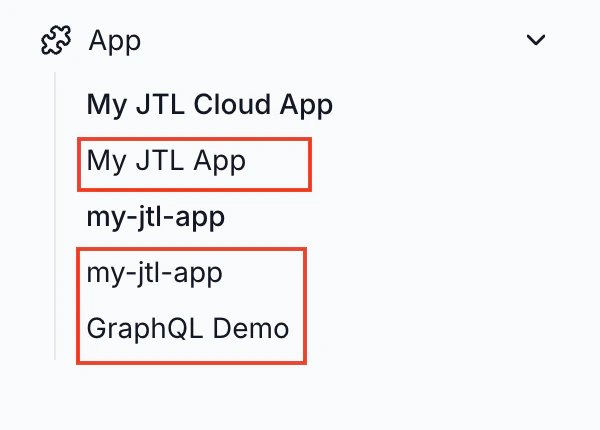 The menu item corresponds to what you configured in your `manifest.json`:
```json From Template theme={null}
"erp": {
"menuItems": [
{
"id": "my-jtl-app-menu",
"name": "my-jtl-app",
"url": "http://localhost:3004/erp"
},
{
"id": "my-jtl-app-graphql-demo",
"name": "GraphQL Demo",
"url": "http://localhost:3004/graphql-demo"
}
],
}
```
```json From Scratch theme={null}
"erp": {
"menuItems": [
{
"id": "my-app-menu",
"name": "My JTL App",
"url": "http://localhost:5173/erp"
}
]
}
```
The `name` field is what appears in the sidebar. The `url` field is the corresponding route in your application.
## 4. Click your App
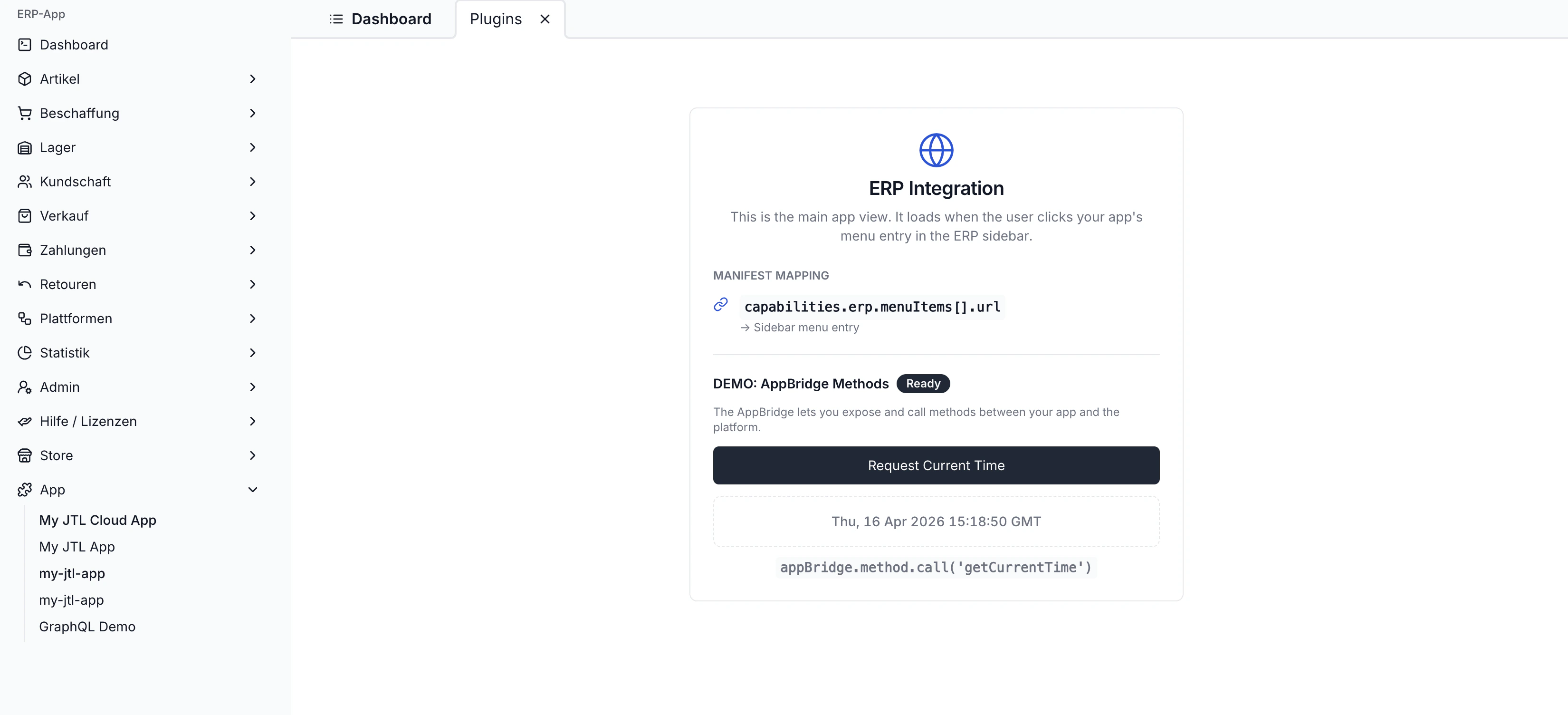
Click your app's menu item in the sidebar. The ERP loads your `/erp` page inside its main content area and shows the items from your JTL-Wawi.
From Template App:
`/my-jtl-app`
The menu item corresponds to what you configured in your `manifest.json`:
```json From Template theme={null}
"erp": {
"menuItems": [
{
"id": "my-jtl-app-menu",
"name": "my-jtl-app",
"url": "http://localhost:3004/erp"
},
{
"id": "my-jtl-app-graphql-demo",
"name": "GraphQL Demo",
"url": "http://localhost:3004/graphql-demo"
}
],
}
```
```json From Scratch theme={null}
"erp": {
"menuItems": [
{
"id": "my-app-menu",
"name": "My JTL App",
"url": "http://localhost:5173/erp"
}
]
}
```
The `name` field is what appears in the sidebar. The `url` field is the corresponding route in your application.
## 4. Click your App
Click your app's menu item in the sidebar. The ERP loads your `/erp` page inside its main content area and shows the items from your JTL-Wawi.
From Template App:
`/my-jtl-app`
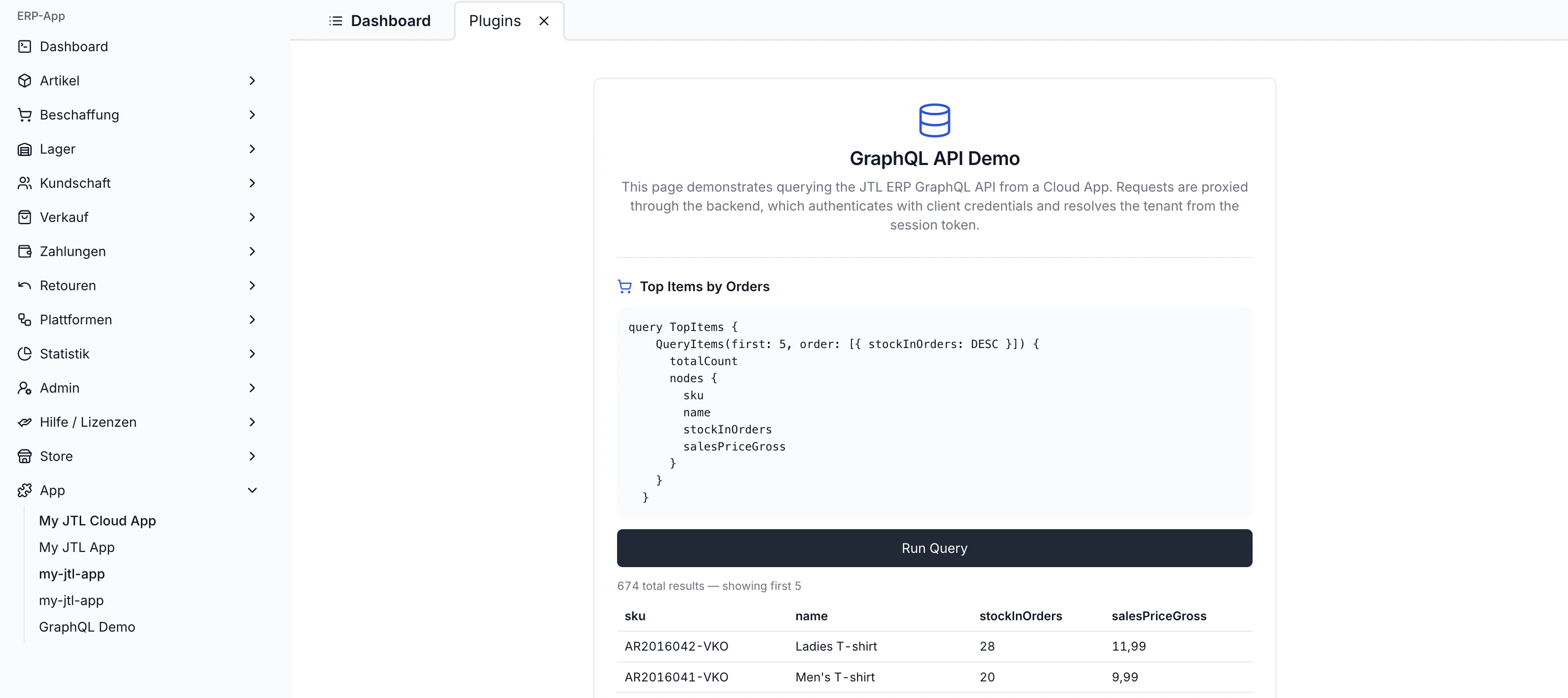
 `/graphql-demo`
 From Scratch App:
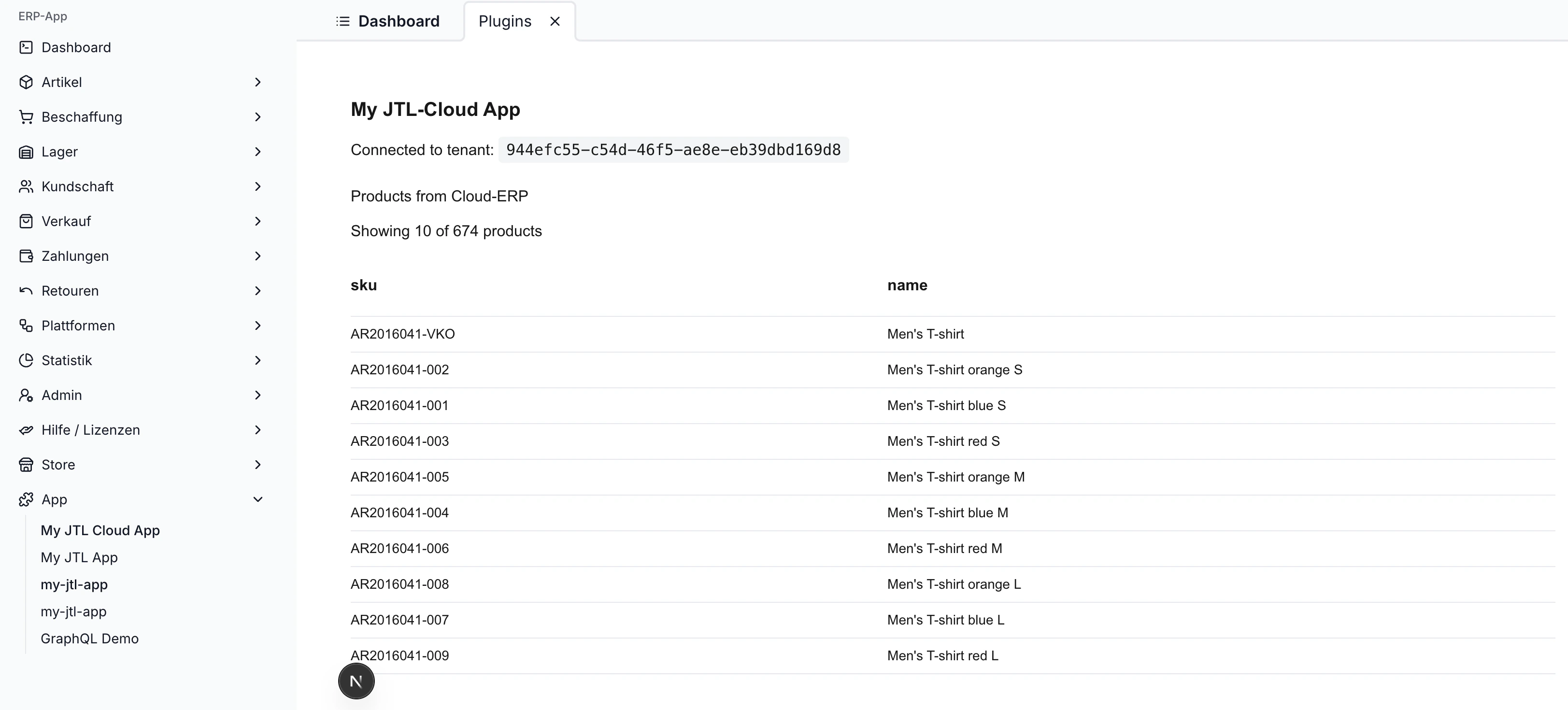 If you followed the **From Template** quickstart, you'll see the item list in the ERP page. If you followed the **From Scratch** quickstart, you'll see the tenant details page showing your connected Tenant ID and list of items.
## 5. Verify the Connection
Your app is working correctly if:
| Check | What to look for |
| ------------------------ | -------------------------------------------------------------------------------------------- |
| ✅ App appears in sidebar | Your menu item name shows under the **App** section |
| ✅ App loads in the ERP | Clicking it renders your app's UI in the main content area |
| ✅ Tenant is connected | Your app displays a tenant ID, queried products from the JTL-Wawi or connection confirmation |
If any of these fail, check the [troubleshooting section](#troubleshooting) below.
## How it All Connects
Here’s what happens under the hood when you click your app:
```mermaid theme={null}
sequenceDiagram
participant ERP as ERP Cloud
participant Shell as App Shell (iframe)
participant App as Your App (localhost)
participant BE as Your Backend
ERP->>Shell: User clicks menu item
Shell->>App: Loads your /erp URL in iframe
App->>Shell: AppBridge initialises
App->>Shell: getSessionToken()
Shell-->>App: Session token
App->>BE: POST /api/connect-tenant
BE-->>App: Tenant details
App->>App: Renders UI with tenant data
```
Your app is extending the [ERP Cloud](https://erp.jtl-cloud.com/). It sits alongside the built-in modules (Articles, Customers, Sales, Stock, etc.) in the sidebar and has the same access to merchant data through the JTL-Wawi API. The only difference is that built-in modules are native, and your app loads from your URL via the App Shell.
## Troubleshooting
* Is your app installed in JTL Hub? Check **Apps in development** in
the Hub.
* Does your manifest include a `menuItems` entry under
`capabilities.erp`?
* Did the manifest registration succeed in the
Partner Portal?
* Is your local dev server running? The ERP loads your app from
`localhost`.
* Check the URL in your manifest's `menuItems` and does the
path match your running app?
* Open browser DevTools (F12) → Console tab. Look for errors.
* If you see a mixed content warning, make sure your URL protocol (HTTP vs HTTPS) matches what the ERP expects.
The AppBridge provider can't connect:
* If your app isn't running inside the App Shell, it won't work in a standalone browser tab
* Check terminal output for backend errors
* Verify `CLIENT_ID` and `CLIENT_SECRET` in your `.env` / `.env.local`
* Restart the dev server after changing environment variables
* **401 / Authentication error:** Your client credentials are wrong or
expired. Regenerate them in the [Partner Portal](https://partner.jtl-cloud.com/).
* **CORS error:** Your backend might not be accepting requests from the ERP's origin. Check your API
route's response headers.
* **Network error:** The ERP can't reach `localhost`. Make sure no firewall or VPN is blocking local
connections.
## What's Next?
Your app is running inside the ERP Cloud. From here:
Ready to ship? Learn how to submit your app for review and reach 50,000+
merchants.
Go deeper with the App Shell: add pane views, custom tabs, and ERP
context integration.
If you followed the **From Template** quickstart, you'll see the item list in the ERP page. If you followed the **From Scratch** quickstart, you'll see the tenant details page showing your connected Tenant ID and list of items.
## 5. Verify the Connection
Your app is working correctly if:
| Check | What to look for |
| ------------------------ | -------------------------------------------------------------------------------------------- |
| ✅ App appears in sidebar | Your menu item name shows under the **App** section |
| ✅ App loads in the ERP | Clicking it renders your app's UI in the main content area |
| ✅ Tenant is connected | Your app displays a tenant ID, queried products from the JTL-Wawi or connection confirmation |
If any of these fail, check the [troubleshooting section](#troubleshooting) below.
## How it All Connects
Here’s what happens under the hood when you click your app:
```mermaid theme={null}
sequenceDiagram
participant ERP as ERP Cloud
participant Shell as App Shell (iframe)
participant App as Your App (localhost)
participant BE as Your Backend
ERP->>Shell: User clicks menu item
Shell->>App: Loads your /erp URL in iframe
App->>Shell: AppBridge initialises
App->>Shell: getSessionToken()
Shell-->>App: Session token
App->>BE: POST /api/connect-tenant
BE-->>App: Tenant details
App->>App: Renders UI with tenant data
```
Your app is extending the [ERP Cloud](https://erp.jtl-cloud.com/). It sits alongside the built-in modules (Articles, Customers, Sales, Stock, etc.) in the sidebar and has the same access to merchant data through the JTL-Wawi API. The only difference is that built-in modules are native, and your app loads from your URL via the App Shell.
## Troubleshooting
* Is your app installed in JTL Hub? Check **Apps in development** in
the Hub.
* Does your manifest include a `menuItems` entry under
`capabilities.erp`?
* Did the manifest registration succeed in the
Partner Portal?
* Is your local dev server running? The ERP loads your app from
`localhost`.
* Check the URL in your manifest's `menuItems` and does the
path match your running app?
* Open browser DevTools (F12) → Console tab. Look for errors.
* If you see a mixed content warning, make sure your URL protocol (HTTP vs HTTPS) matches what the ERP expects.
The AppBridge provider can't connect:
* If your app isn't running inside the App Shell, it won't work in a standalone browser tab
* Check terminal output for backend errors
* Verify `CLIENT_ID` and `CLIENT_SECRET` in your `.env` / `.env.local`
* Restart the dev server after changing environment variables
* **401 / Authentication error:** Your client credentials are wrong or
expired. Regenerate them in the [Partner Portal](https://partner.jtl-cloud.com/).
* **CORS error:** Your backend might not be accepting requests from the ERP's origin. Check your API
route's response headers.
* **Network error:** The ERP can't reach `localhost`. Make sure no firewall or VPN is blocking local
connections.
## What's Next?
Your app is running inside the ERP Cloud. From here:
Ready to ship? Learn how to submit your app for review and reach 50,000+
merchants.
Go deeper with the App Shell: add pane views, custom tabs, and ERP
context integration.