> ## Documentation Index
> Fetch the complete documentation index at: https://developer.jtl-software.com/llms.txt
> Use this file to discover all available pages before exploring further.
# Create a Developer Account
> Set up your development environment in three connected steps. Takes about 10 minutes.
To build on the JTL platform, you'll work across four connected environments. Each one plays a different role in your development workflow. Three of them are needed to start building, and the fourth comes in when you're ready to test your app.
This guide walks you through setting them up in one go. It takes about 10 minutes.
## Your Development Environment
Here's what each environment does and why you need it:
| Environment | What you'll use it for |
| ------------------------------------------------------------ | ------------------------------------------------------------------------------------------------------------------------------------------------------------------------------------------------------------------------------------------------ |
| **[JTL-Wawi](/guides/erp-integration/integration-overview)** | The ERP system where merchant data lives: products, orders, customers, inventory. Your app reads and writes this data through APIs or GraphQL. |
| **[Partner Portal](https://partner.jtl-cloud.com/)** | Where you create and manage your apps. |
| **[JTL Hub](https://hub.jtl-cloud.com/)** | A dedicated environment where you can install and test your apps, verify the connection to JTL-Wawi, and manage the app lifecycle before going live. |
| **[ERP Cloud](https://erp.jtl-cloud.com/)** | The web-based interface where your installed app actually runs. Currently in development, with MVP release coming soon. You can already use it to test your app and validate how it integrates. See [Test your App](/get-started/test-your-app). |
**JTL-Wawi** is the ERP itself (the data), **Partner Portal** is where you
create and manage your apps, **JTL Hub** is where you install, and **ERP
Cloud** is where your app runs for the merchant.
Here's how they connect:
```mermaid theme={null}
flowchart LR
subgraph You["👤 Developer"]
direction TB
end
subgraph Create["1 · Partner Portal"]
direction TB
PP["**Create & configure apps**
Manage credentials
Handle submissions & payouts"]
end
subgraph Install["2 · JTL Hub"]
direction TB
HC["**Sandbox environment**
Install & test apps
Manage app lifecycle"]
end
subgraph Run["3 · ERP Cloud"]
direction TB
EP["**App runtime**
Where your installed
app actually renders"]
end
subgraph Data["JTL-Wawi"]
direction TB
WW["**ERP system**
Products, orders, customers, inventory & shipping"]
end
subgraph Ship["🚀 App Store"]
direction TB
ES["Distribute to 50,000+ merchants"]
end
You --> Create
Create -- "App credentials" --> Install
Install -- "Launches app" --> Run
Run -- "APIs" --> Data
Install -- "Submit" --> Ship
style Create fill:#FFF2EB,stroke:#FB581F,stroke-width:2px,color:#0B1B45
style Install fill:#E8F4FF,stroke:#89D2FF,stroke-width:2px,color:#0B1B45
style Run fill:#E8F4FF,stroke:#89D2FF,stroke-width:2px,color:#0B1B45
style Data fill:#FFF2EB,stroke:#FB581F,stroke-width:2px,color:#0B1B45
style Ship fill:#FFF2EB,stroke:#FB581F,stroke-width:2px,color:#0B1B45
style You fill:#EEEEE7,stroke:#0B1B45,stroke-width:2px,color:#0B1B45
```
The overall flow is: you **create your app** in the Partner Portal, **install it** in JTL Hub, **run it** in the ERP Cloud against **live data from JTL-Wawi**, and when everything looks good, **submit it** to the App Store.
Now let's get everything set up.
## Step 1: Set up your Partner Portal
This is your app management hub where you create apps and get your client credentials.
Open [Partner Portal](https://partner.jtl-cloud.com/) in your browser.
SSO is currently not supported with your JTL ID. You'll need to register separately with your email.
Once you navigate to the URL, you'll be prompted to log in with your **JTL ID**. Click on the **Register now** button to create a new JTL ID.
**JTL ID** provides a single access point to all JTL cloud-related services (JTL Hub, Partner Portal, ERP Cloud, etc.)
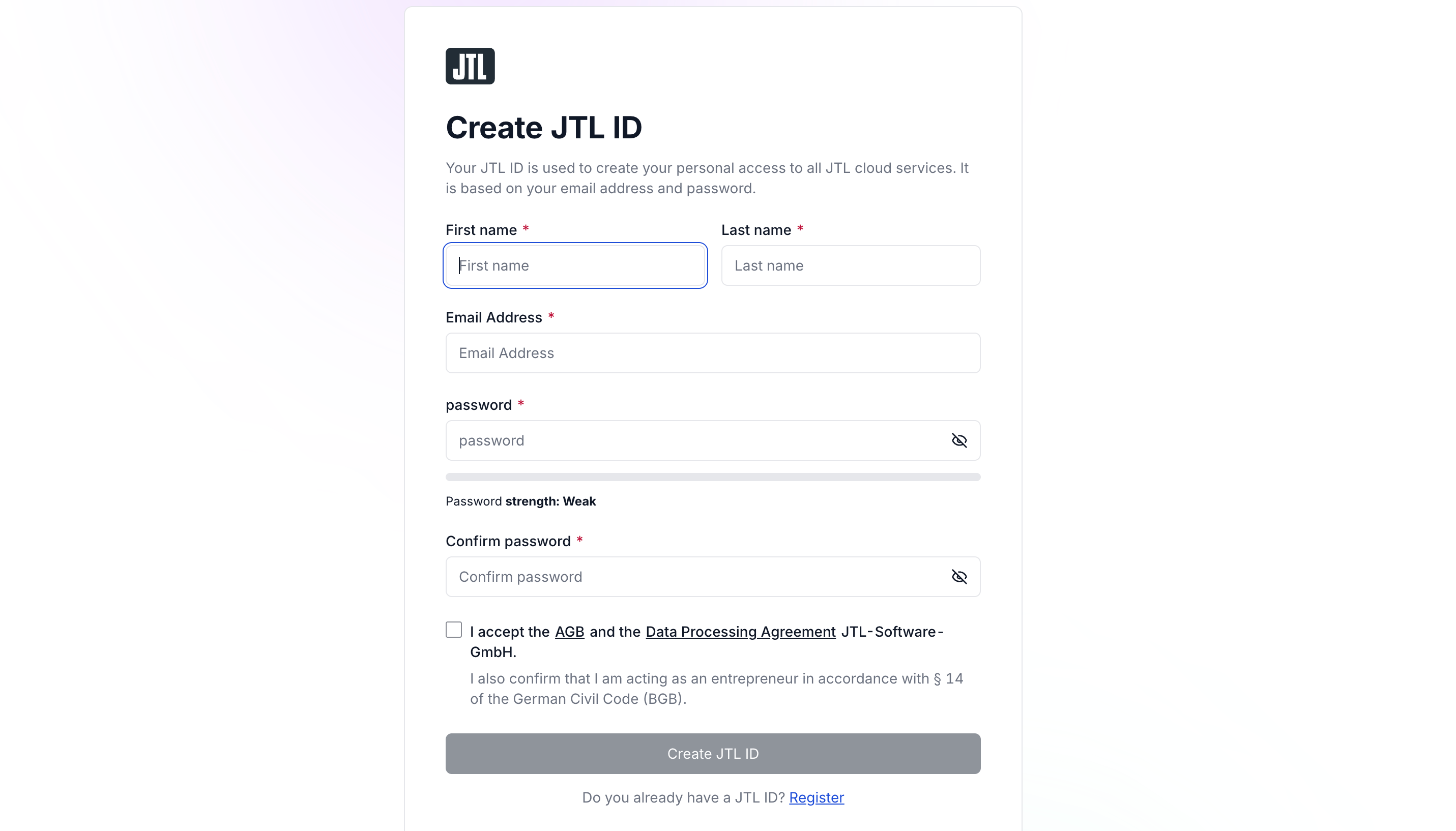 On registering, you'll be asked to fill in the confirmation code sent to your email address. Once you fill in the code, you'll be redirected to the log in page.
Once you log in with your credentials, choose one of the following:
On registering, you'll be asked to fill in the confirmation code sent to your email address. Once you fill in the code, you'll be redirected to the log in page.
Once you log in with your credentials, choose one of the following:
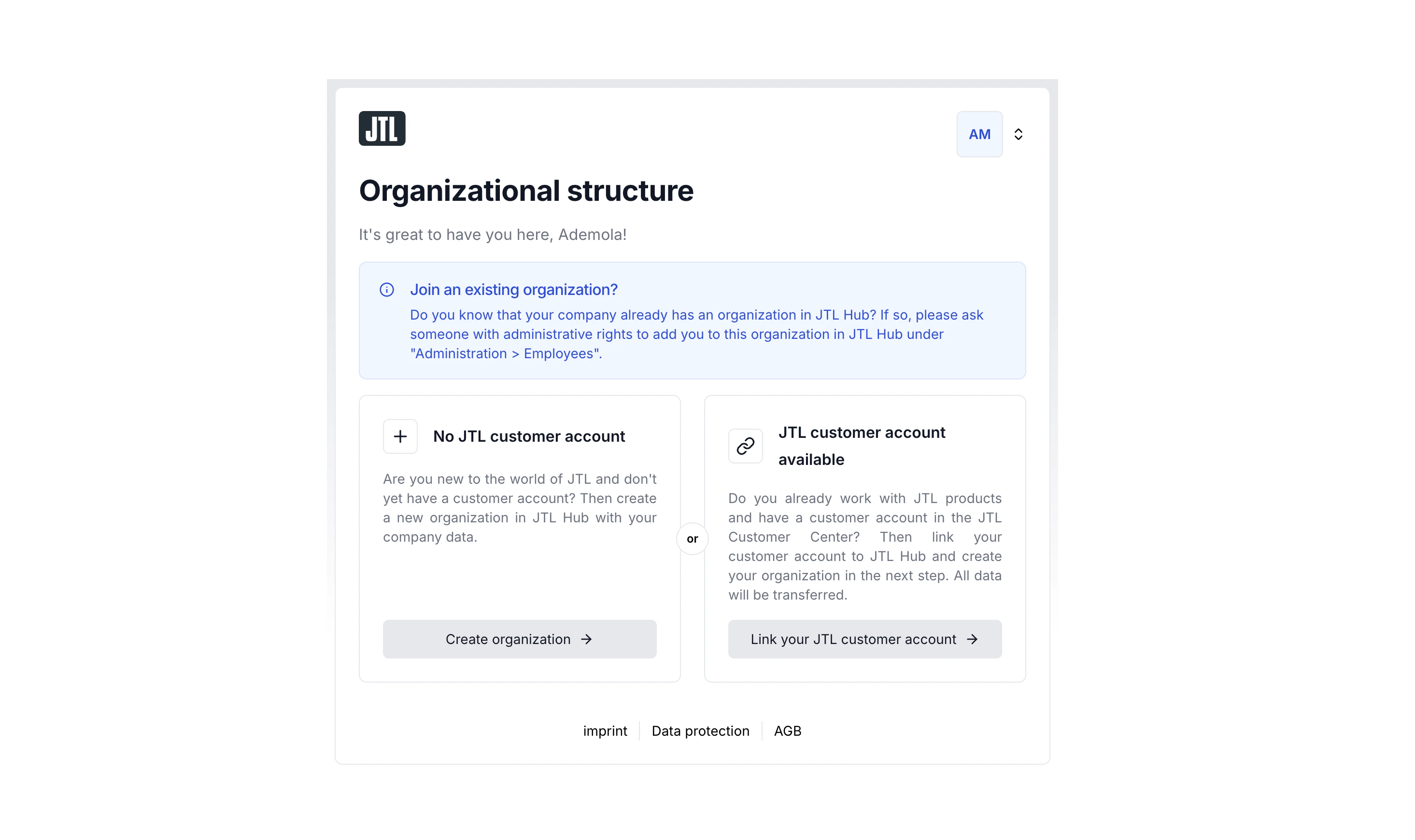 * **New to JTL**: Click **Create organization** and fill in the required details if you don't have an existing Customer Center Account.
* **Existing JTL customer**: Click **Link your JTL customer account** and log in to your Customer Center Account. Then **Authorize** JTL Cloud when prompted.
**Customer Center Account** is your central hub for managing licenses, JTL
services, billing, and support.
After completing either option above, continue with the steps below:
1. Once your organization is created, you’ll see your organization name and custom URL path.
* **New to JTL**: Click **Create organization** and fill in the required details if you don't have an existing Customer Center Account.
* **Existing JTL customer**: Click **Link your JTL customer account** and log in to your Customer Center Account. Then **Authorize** JTL Cloud when prompted.
**Customer Center Account** is your central hub for managing licenses, JTL
services, billing, and support.
After completing either option above, continue with the steps below:
1. Once your organization is created, you’ll see your organization name and custom URL path.
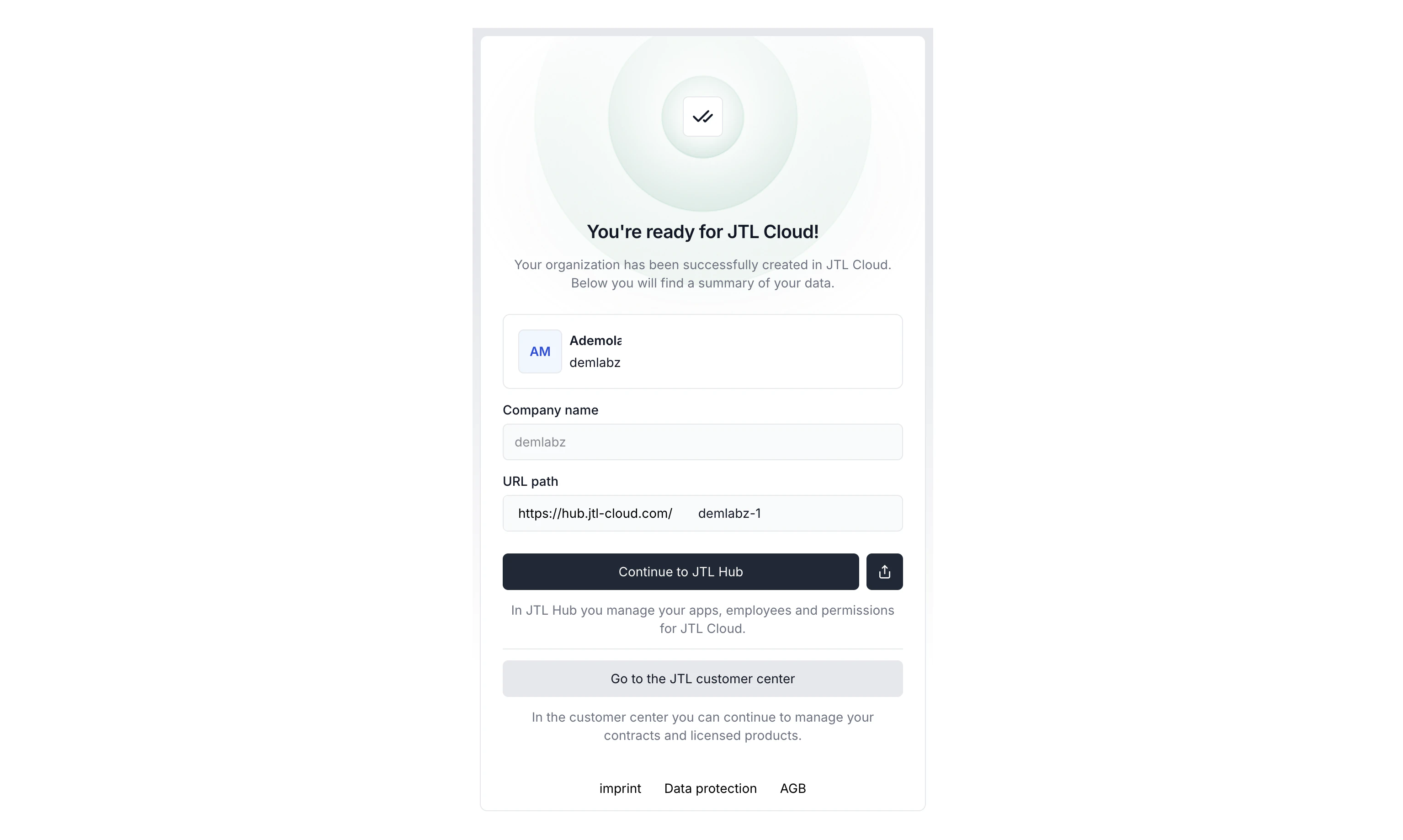 2. Click **Continue to JTL Hub** and you’ll be redirected to [JTL Hub dashboard](https://hub.jtl-cloud.com/).
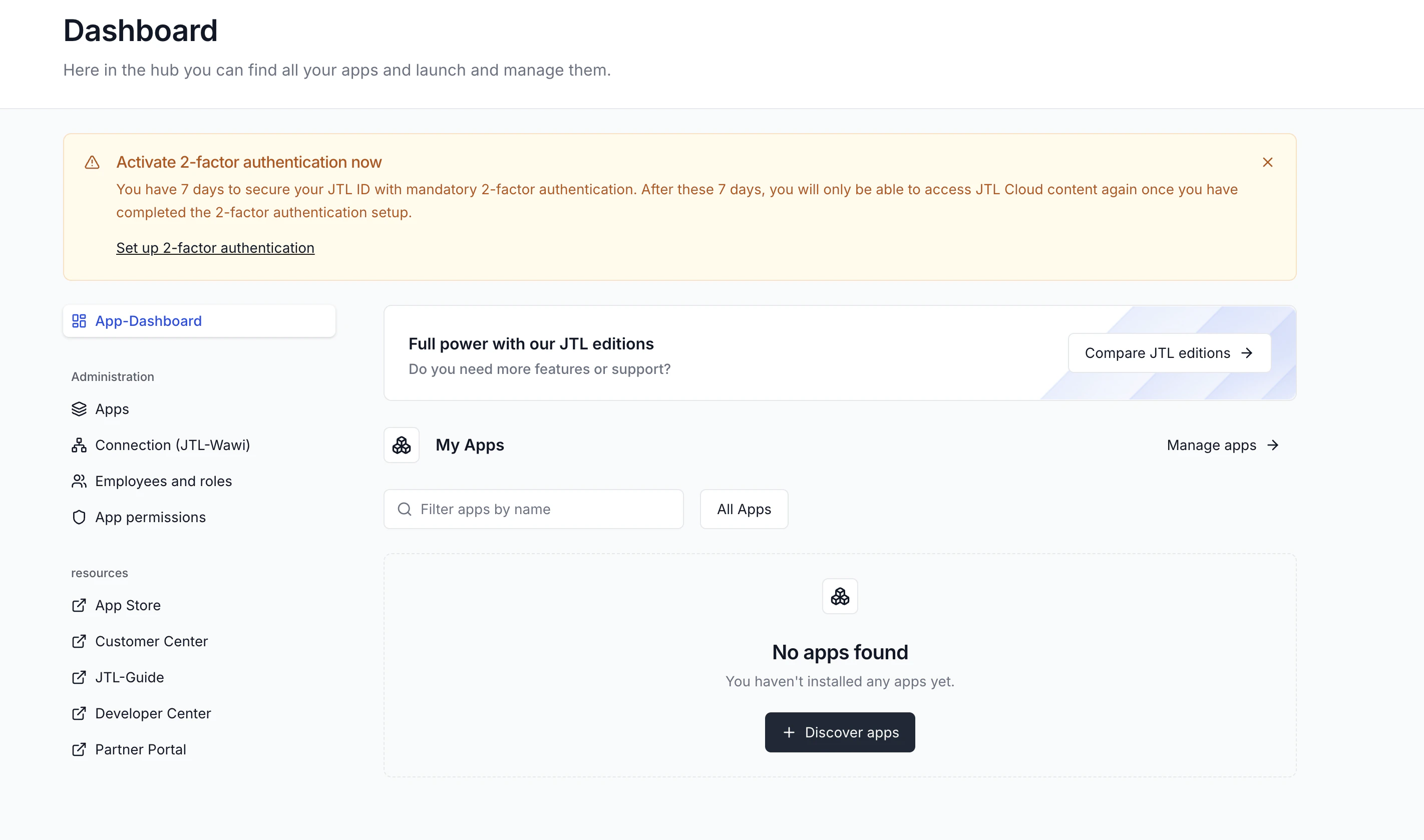 It’s recommended to set up 2FA before proceeding.
3. On your JTL Hub dashboard, click the [Partner Portal](https://partner.jtl-cloud.com/) link.
It’s recommended to set up 2FA before proceeding.
3. On your JTL Hub dashboard, click the [Partner Portal](https://partner.jtl-cloud.com/) link.
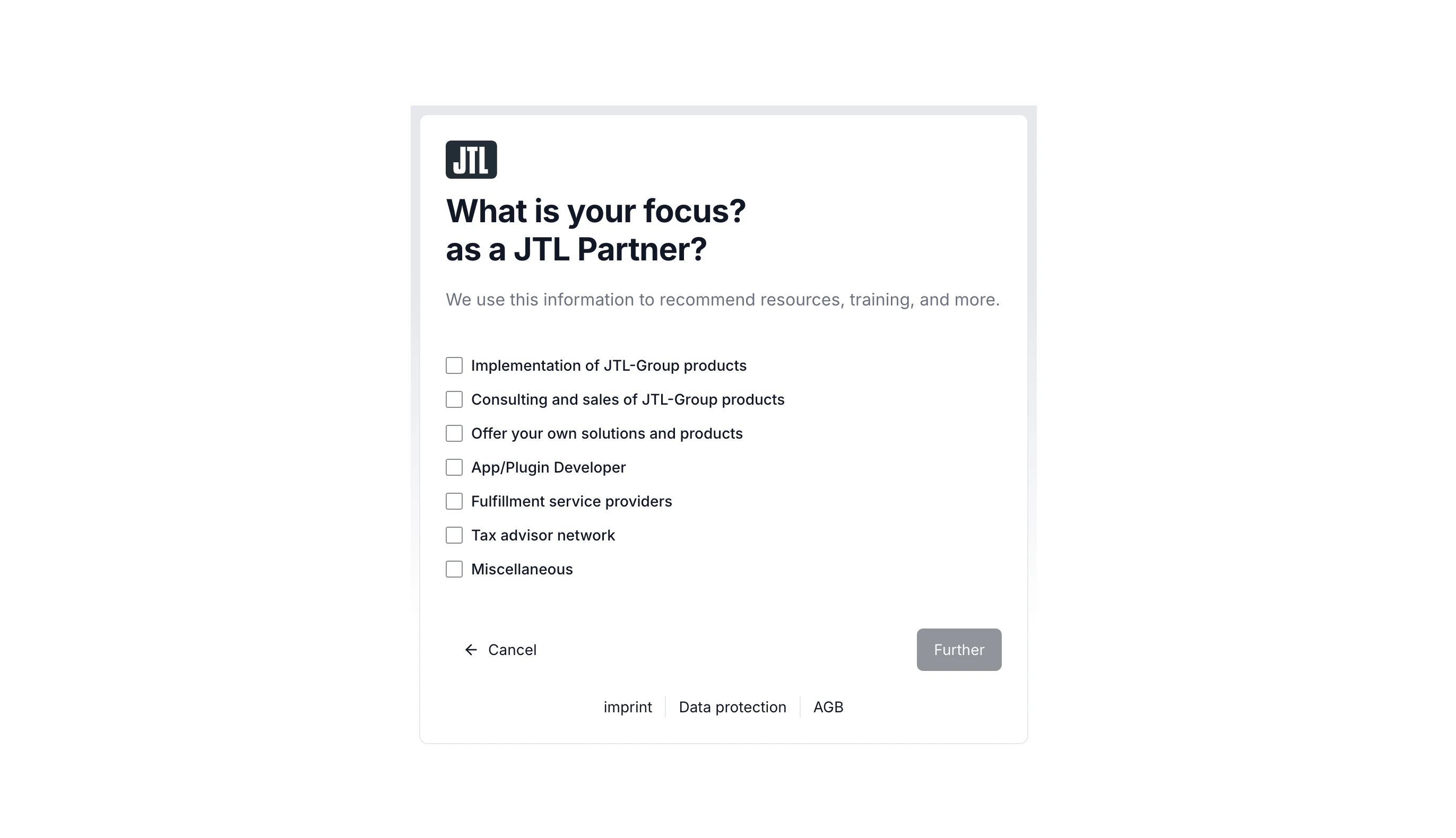
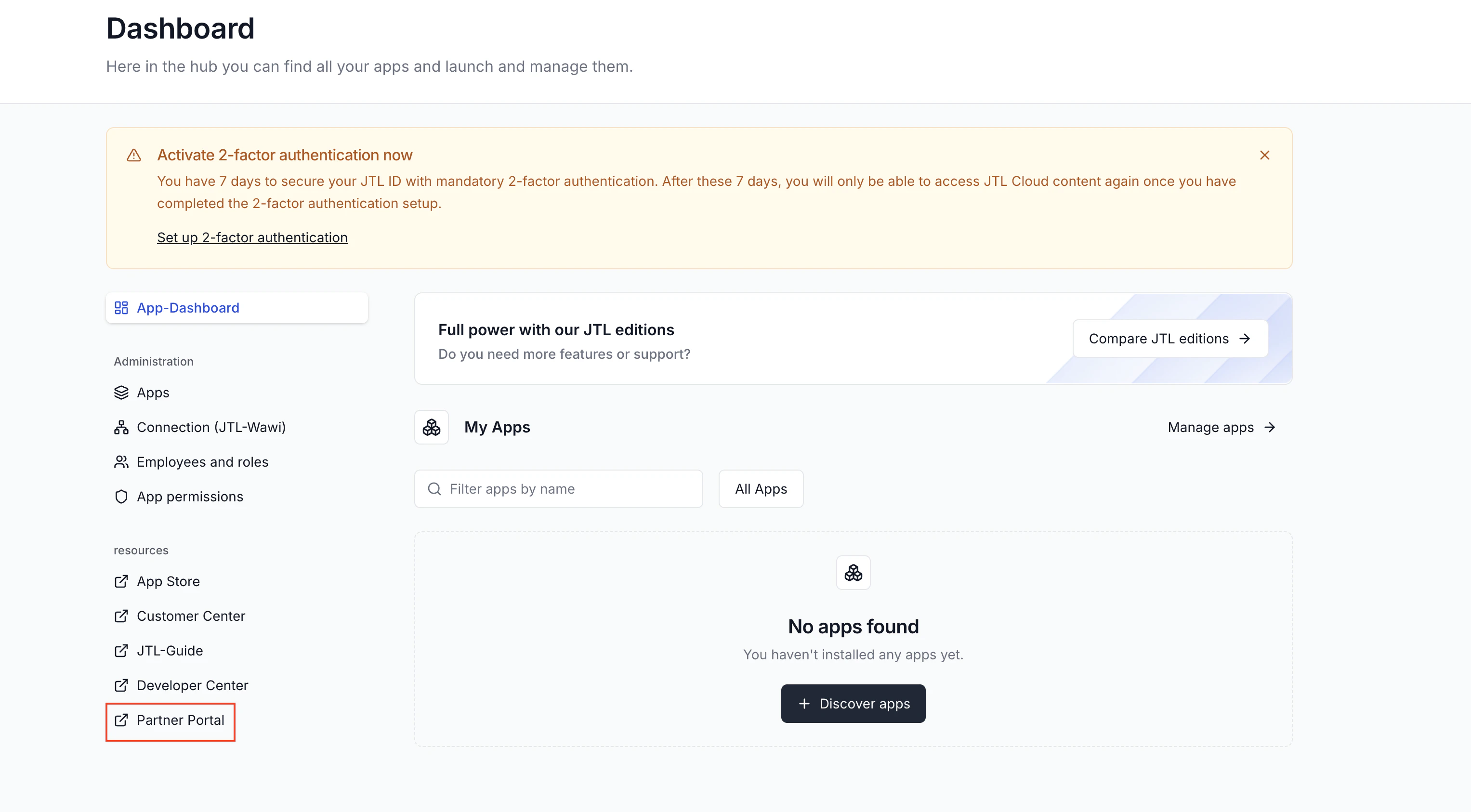 You’ll be redirected to the Partner Portal domain. Click **Create an account**.
Next, select how you want to use the Partner Portal and then **Continue**.
You’ll be redirected to the Partner Portal domain. Click **Create an account**.
Next, select how you want to use the Partner Portal and then **Continue**.
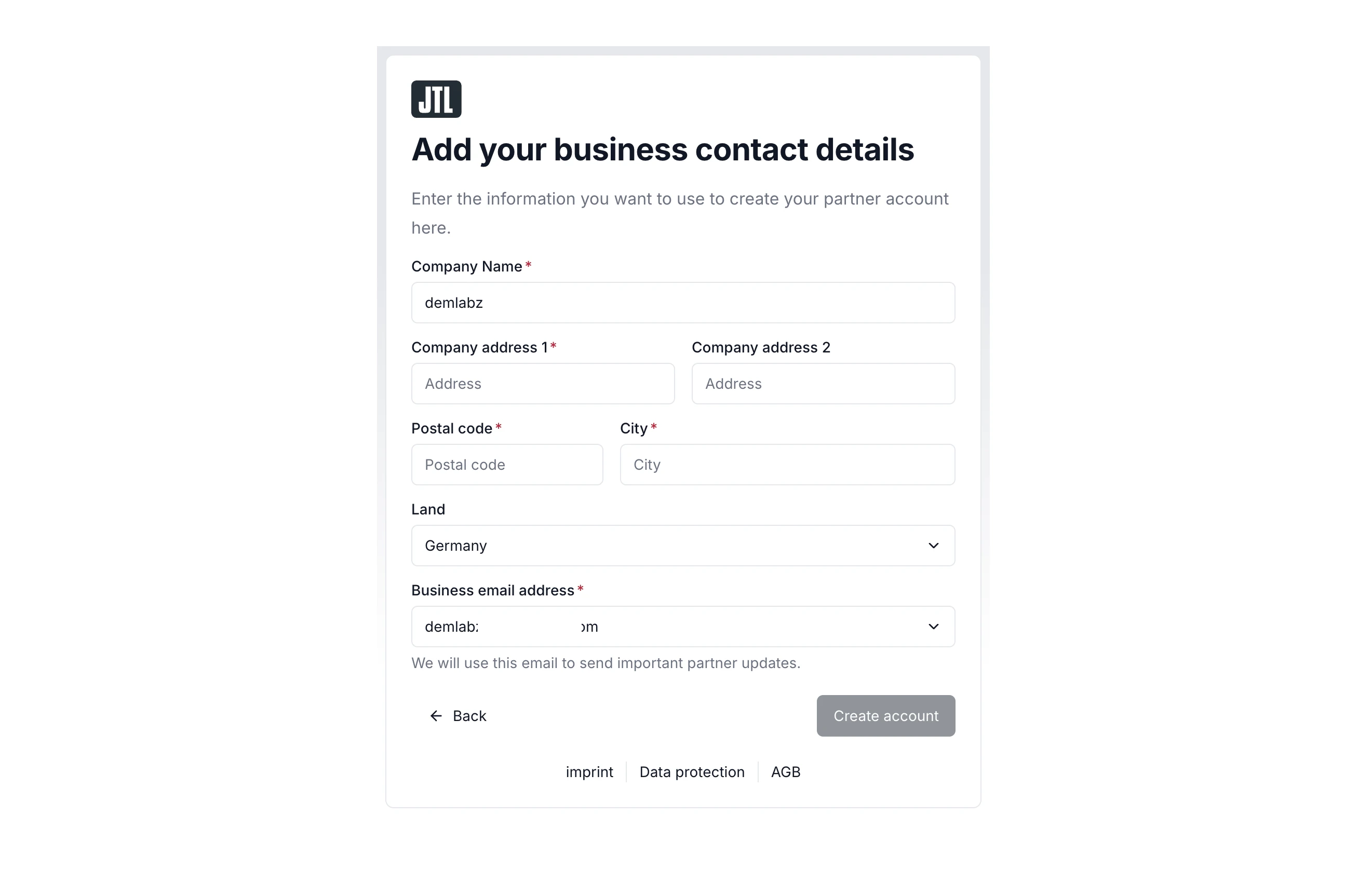
 4. Enter your business contact details and **Create account**.
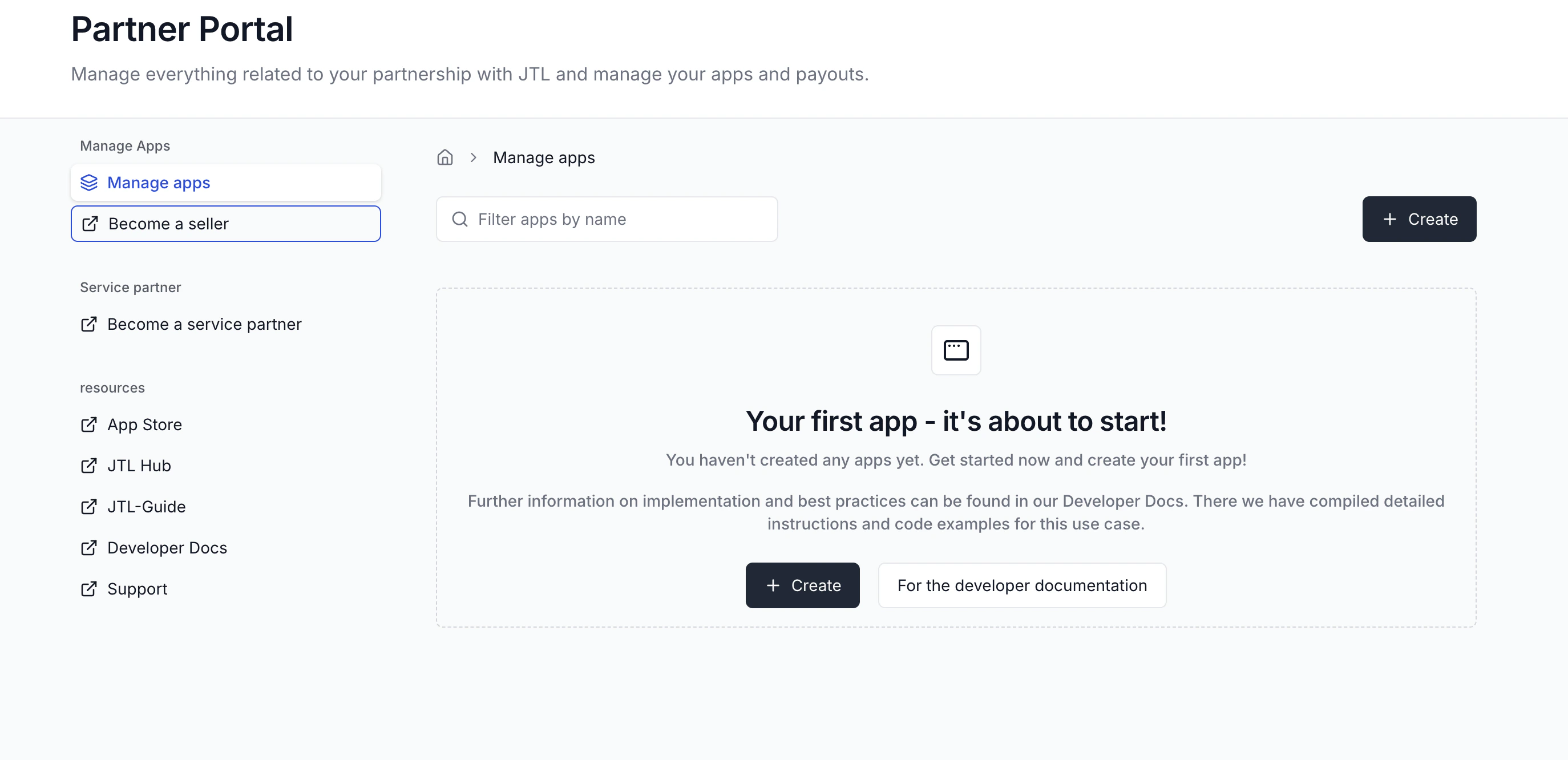
 Once your account is created, you’ll be redirected to the Partner Portal dashboard. This is where you'll create and manage your apps.
 ## Step 2: Connect to JTL-Wawi
The final step is to connect your JTL Cloud environment to JTL-Wawi. Your app uses this connection to read and write merchant data.
Log in to your JTL-Wawi instance.
In the **Admin** menu, click **JTL Cloud**, then click **Connect**.
## Step 2: Connect to JTL-Wawi
The final step is to connect your JTL Cloud environment to JTL-Wawi. Your app uses this connection to read and write merchant data.
Log in to your JTL-Wawi instance.
In the **Admin** menu, click **JTL Cloud**, then click **Connect**.
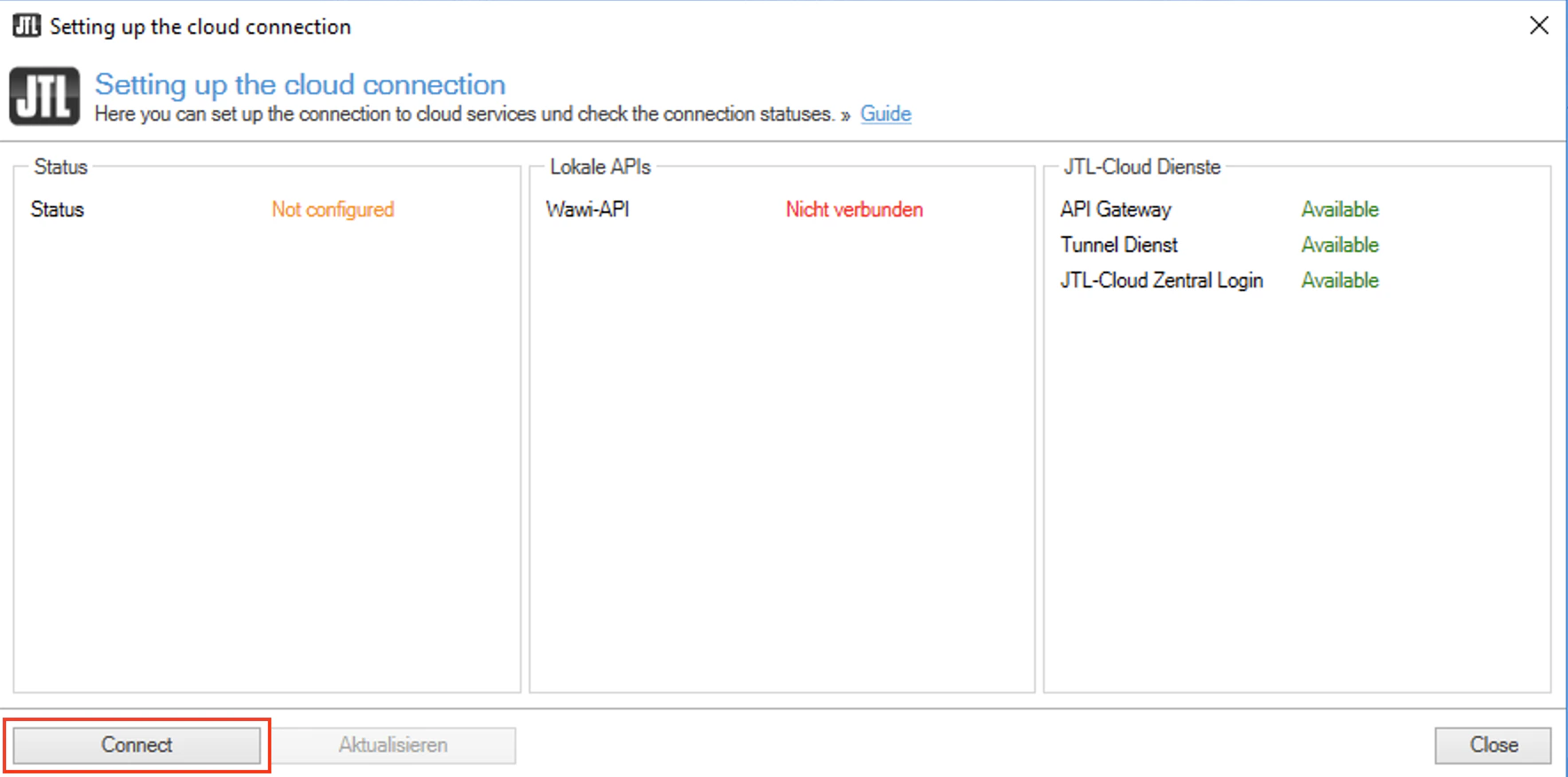 Read the message in the dialog carefully and click **OK**. This opens a new tab with the JTL Cloud login page.
Log in using the JTL ID you created in [Step 1](#step-1-set-up-your-partner-portal).
Once authentication is successful, close the browser tab and return to your JTL-Wawi instance.
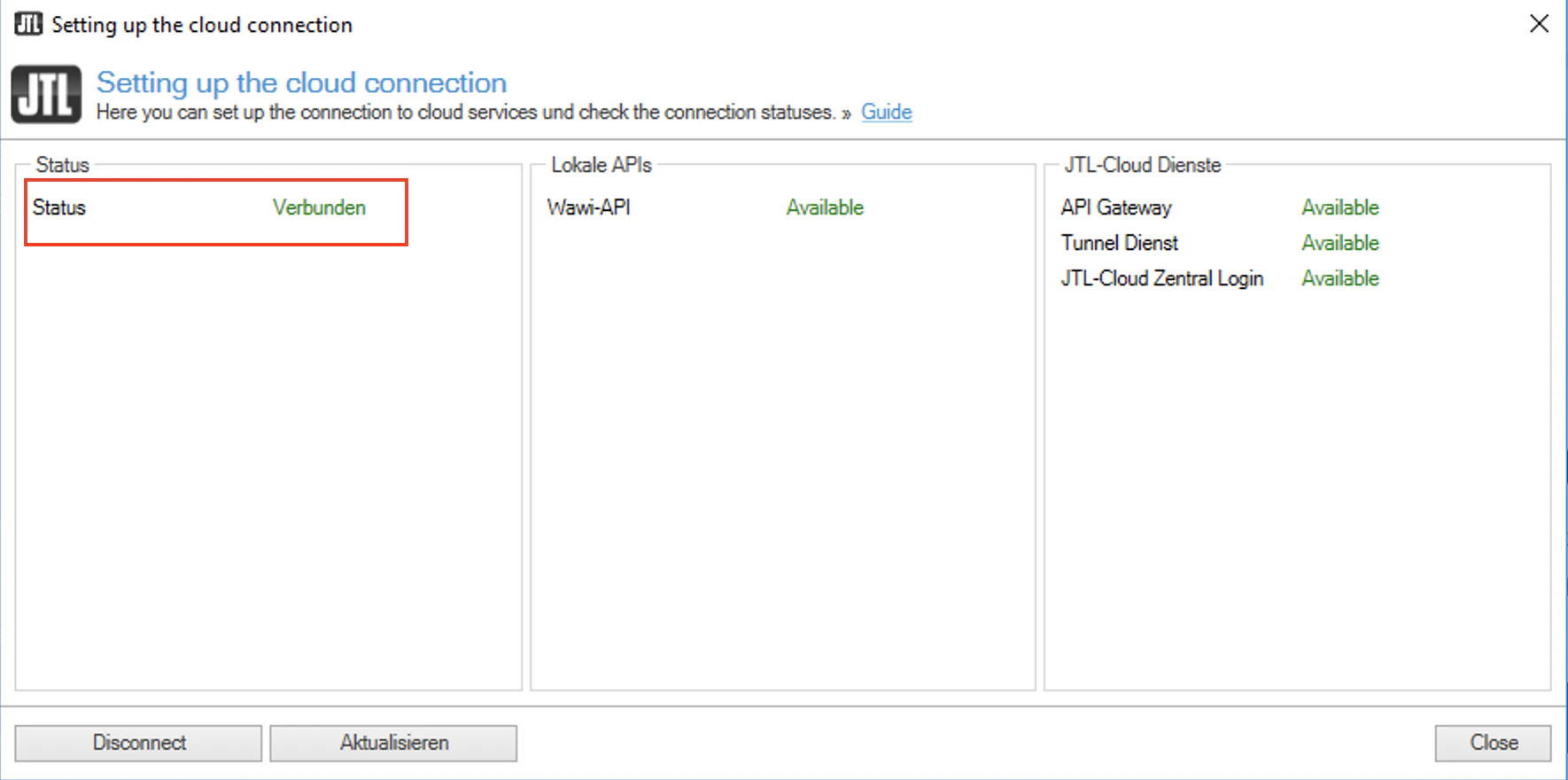
Back in JTL-Wawi, you'll see a **Connected** status, indicating the pairing was successful.
Read the message in the dialog carefully and click **OK**. This opens a new tab with the JTL Cloud login page.
Log in using the JTL ID you created in [Step 1](#step-1-set-up-your-partner-portal).
Once authentication is successful, close the browser tab and return to your JTL-Wawi instance.
Back in JTL-Wawi, you'll see a **Connected** status, indicating the pairing was successful.
 Pairing JTL-Wawi with JTL Cloud is not sufficient on its own. You must also configure and start the Wawi API so your app can access and sync data.
Open the **JTL Administrator** to start the Wawi API.
JTL creates a desktop shortcut for the JTL Administrator after installation.\
For older versions of JTL-Wawi, you can find it in the installation folder.
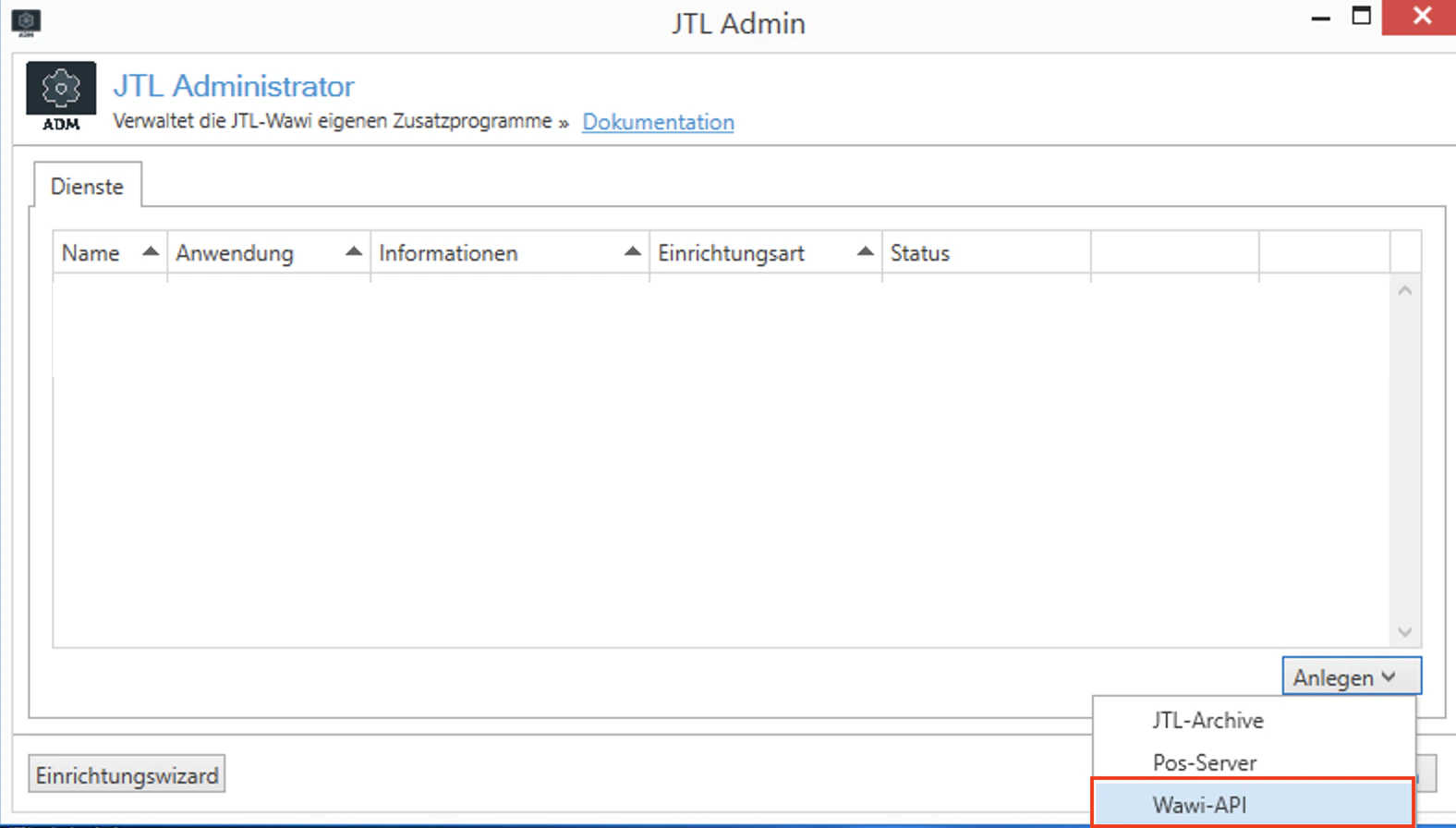
Create a new entry by selecting **Wawi-API**.
Pairing JTL-Wawi with JTL Cloud is not sufficient on its own. You must also configure and start the Wawi API so your app can access and sync data.
Open the **JTL Administrator** to start the Wawi API.
JTL creates a desktop shortcut for the JTL Administrator after installation.\
For older versions of JTL-Wawi, you can find it in the installation folder.
Create a new entry by selecting **Wawi-API**.
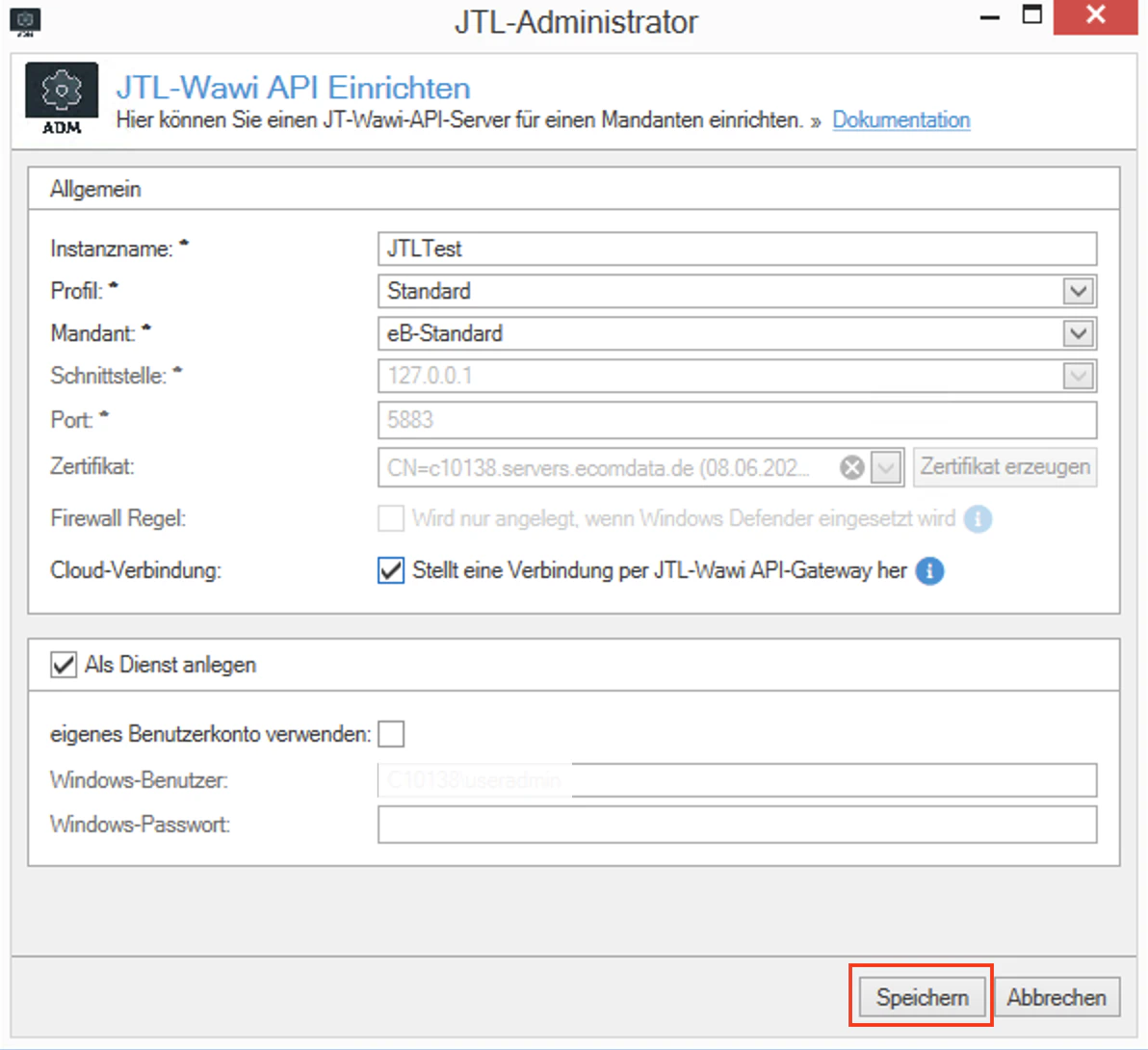
 Select the desired profile and certificate, then enable the **Cloud Connection** checkbox.
Click **Save**.
Select the desired profile and certificate, then enable the **Cloud Connection** checkbox.
Click **Save**.
 Once the connection is established, you will see an **is running** status. This may take a few seconds.
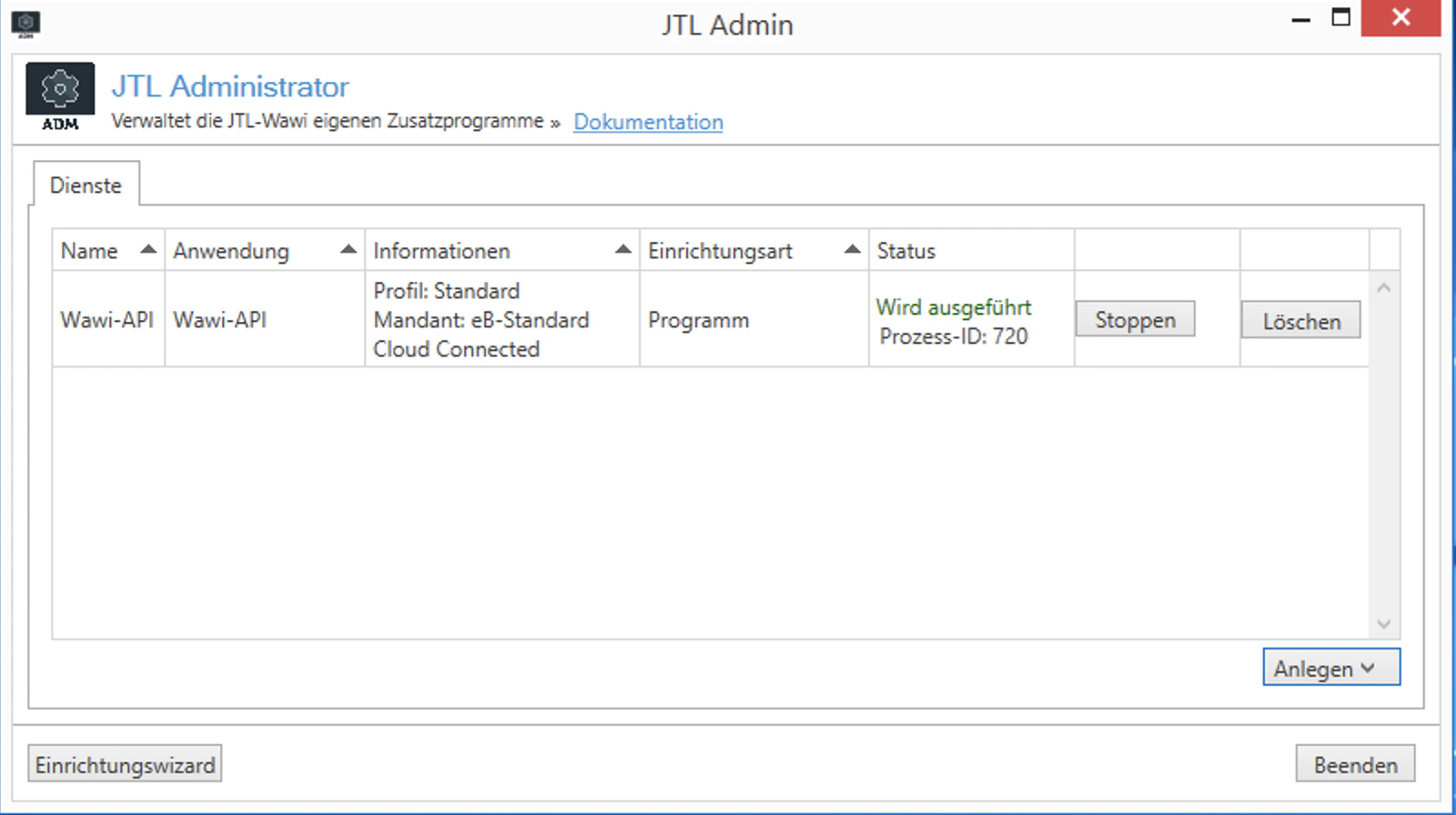 You can start or stop the API service from the JTL Administrator.
If the API service is stopped, Cloud Apps cannot read or write data.
Navigate to the **Connection (JTL-Wawi)** menu in JTL Hub to see your connected Wawi instance.
You can start or stop the API service from the JTL Administrator.
If the API service is stopped, Cloud Apps cannot read or write data.
Navigate to the **Connection (JTL-Wawi)** menu in JTL Hub to see your connected Wawi instance.
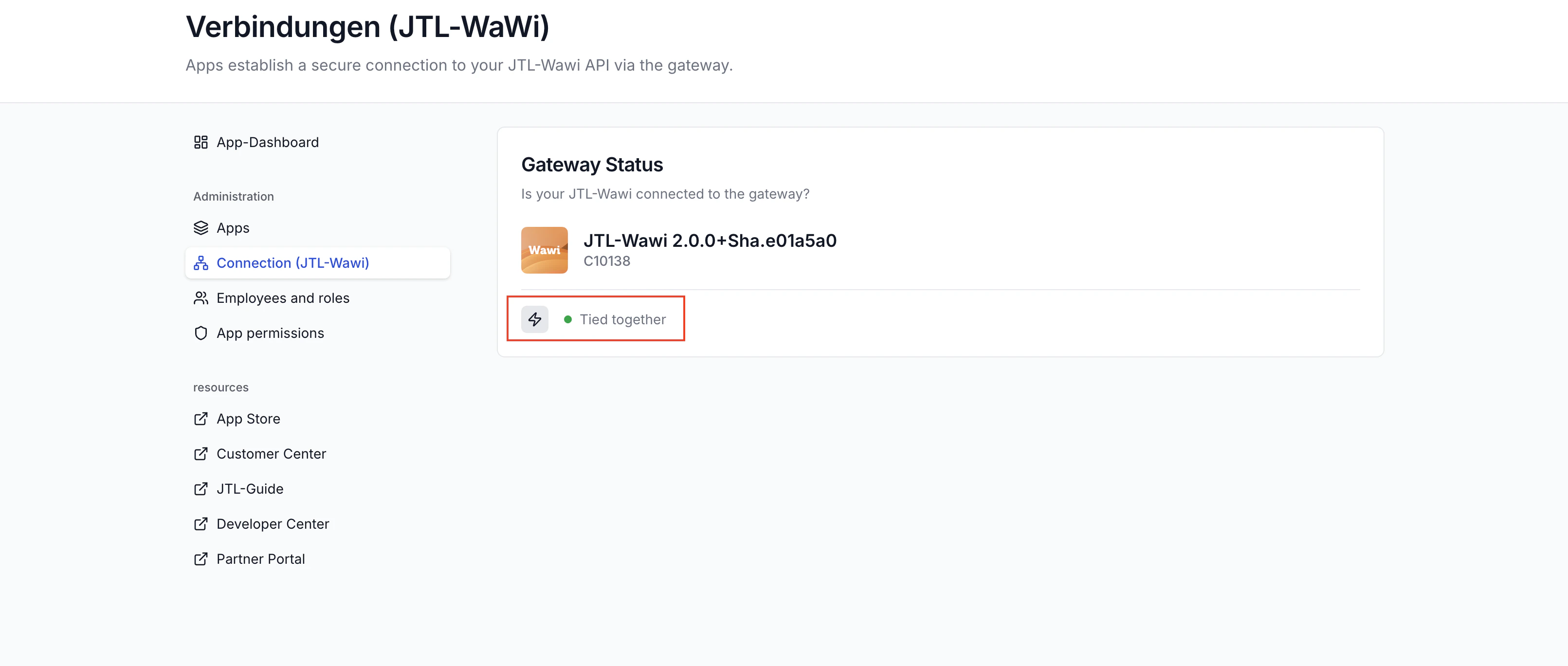 You now have everything you need to start building Cloud Apps.
## What's Next?
Start from a template and get a Cloud App running in minutes. Recommended for most developers.
Build a Cloud App step by step to understand how everything fits together.
**Need help?** If you run into issues during account setup, reach out via the [support channel](/help/support).
You now have everything you need to start building Cloud Apps.
## What's Next?
Start from a template and get a Cloud App running in minutes. Recommended for most developers.
Build a Cloud App step by step to understand how everything fits together.
**Need help?** If you run into issues during account setup, reach out via the [support channel](/help/support).